How to Onboard a New Barber Into an Existing Barbershop Schedule
Why the Operational Side of Onboarding Is Harder Than the Hiring Decision
Most barbershop owners spend real energy on the hiring process — reviewing portfolios, trial cuts, back-and-forth on pay structure. Then the hire is made, and suddenly there is a far more urgent question: how does a new barber actually get plugged into a schedule that is already running at full pace without breaking something for existing clients?
Knowing how to onboard a new barber into an existing barbershop schedule is its own discipline. Done poorly, it creates double-bookings, confused clients, uncollected commission, and a bad first impression for someone you just spent weeks recruiting. Done well, the new team member starts taking bookings on day one and earns their way in without anyone else feeling the friction.
This guide walks through that exact process using VuriumBook's calendar, client records, payroll, and messaging tools. If you have already worked through the data side of deciding whether to hire — that earlier question is covered in our guide on when to hire another barber using booking data and payroll — this post picks up right where that one leaves off.
Step 1: Create the New Barber's Profile Before Anything Else
The single most common mistake is rushing to get the new barber onto the floor without setting up their profile correctly first. Every other piece of the workflow — their calendar, their services, their pay — depends on this profile being complete before a single booking goes through.
Inside VuriumBook, add the new team member as a staff profile. Assign them the right role so they have access to their own schedule and client records without touching administrative settings they do not need. A clearly scoped role prevents accidental edits to other barbers' calendars and keeps your shop's data clean from day one.
While you are in the profile, take a moment to confirm their contact details are accurate. VuriumBook's team messaging runs through these profiles, so a wrong number or email means they miss shift updates and schedule changes — a small oversight that compounds quickly in a busy shop.
Step 2: Build Their Calendar Availability Around Your Existing Schedule
This is the step that most directly determines whether onboarding disrupts the rest of your team. The goal is to carve out availability windows for the new barber that complement your current book rather than compete with it.
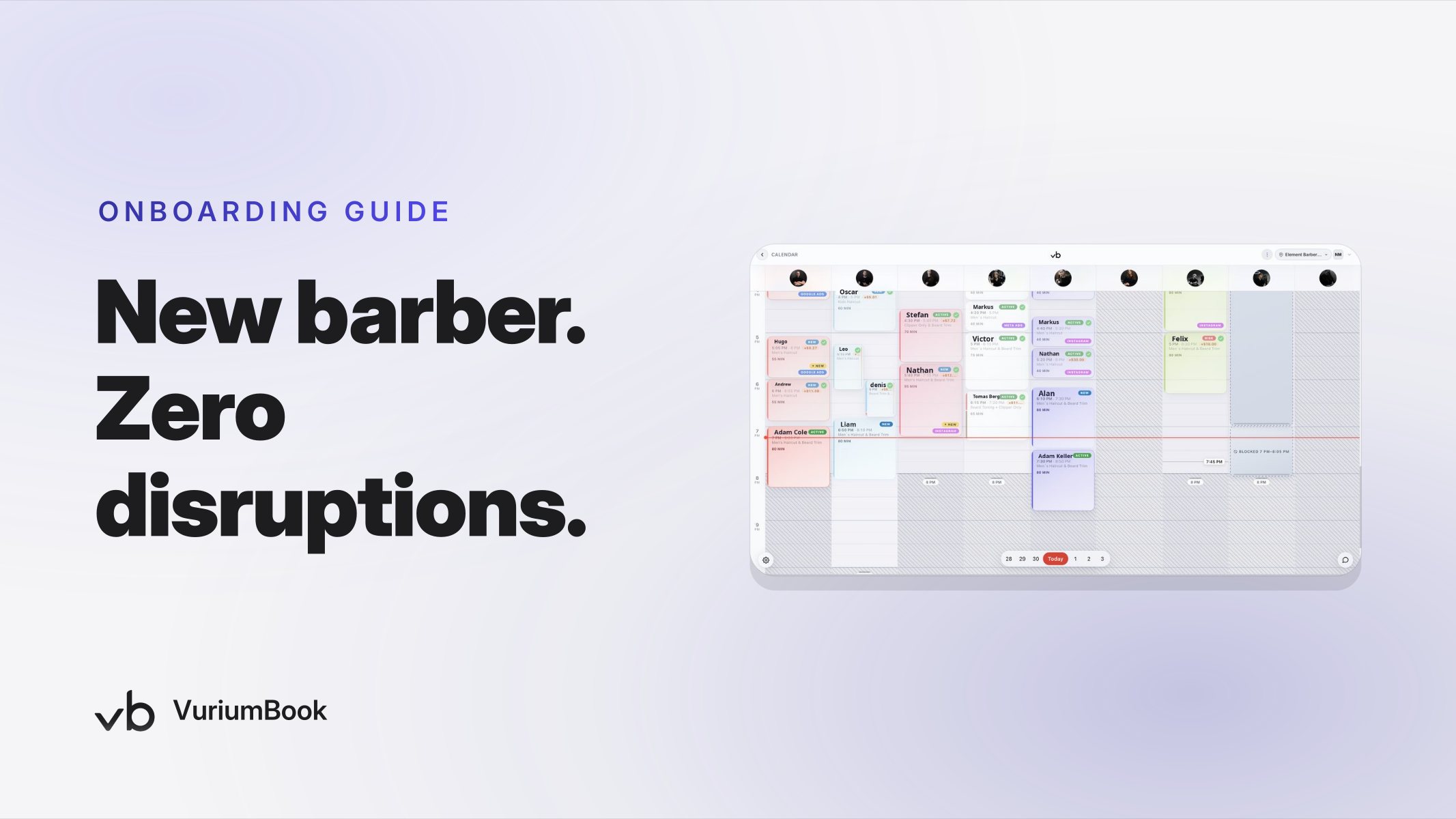
Open the calendar and set the new barber's working hours. Be deliberate here. If your shop peaks on Friday afternoons and your established barbers are already at capacity, consider starting the new hire with availability that fills in a weaker window — mid-week mornings, for instance — before expanding. This protects your top earners from having new-booking traffic diluted and gives the new barber a realistic ramp rather than an empty chair during your busiest hours.
Block out any training time or orientation periods as internal holds so those slots do not show as bookable. Clients booking online will only see genuine availability, which means you avoid the awkward situation of someone booking a slot when the barber is still in an onboarding walkthrough.
New Barber Calendar Setup Workflow
Step 3: Assign Only the Services the New Barber Is Ready to Offer
VuriumBook lets you assign specific services to individual barbers. Use this deliberately during onboarding. A new hire may be fully qualified to perform every service on your menu, but starting them with a focused service list has a practical benefit: it keeps their early appointments clean and predictable while they learn your shop's workflow.
If they are new to a particular technique or product line you offer, leave those services unassigned until you have seen them deliver consistently. You can expand their service list at any point. Rolling it back after a client complaint is a harder conversation.
Assigning services correctly also matters for analytics. If a barber is booked for a service that was not properly assigned to them, the per-barber reporting becomes unreliable — which matters the moment you want to evaluate how the new hire is performing against the rest of your team. For a closer look at how that reporting works, see our guide on barbershop service performance analytics by barber.
Step 4: Configure Payroll and Commission Before the First Appointment
Payroll configuration is the step most often left until the end of the first pay cycle — at which point it becomes an emergency. Set the new barber's pay structure inside VuriumBook before their calendar goes live. Whether you are running commission, a chair-rental arrangement, or a hybrid, the system needs to know what to track from the first transaction.
If you agreed on a commission rate during hiring, enter it now and confirm it matches what you discussed. A discrepancy discovered on payday creates distrust that is genuinely hard to repair with a new employee. Getting this right before the first booking is one of the cheapest things you can do to protect that relationship.
VuriumBook's payroll and commission tools track earnings against booked services automatically once the rate is set, so there is no manual reconciliation at the end of the pay period. The system does the arithmetic — you just need to configure it correctly upfront.
Pre-Launch Onboarding Checklist
Step 5: Handle Client Assignment With Care
One of the more sensitive operational questions when adding a new barber is whether — and how — to move clients to them. There are two scenarios: clients who are brand new to your shop and can be routed to the new barber organically, and existing clients who currently book with an established barber.
For new clients, this is straightforward. Once the new barber's calendar is live and their services are assigned, online booking will present them as an available option. New clients who have no existing barber preference may naturally select them, especially if availability windows align with what the client needs.
For existing clients, tread carefully. Never reassign a loyal client to a new barber without a conversation. Instead, use VuriumBook's client records to identify clients who are currently overflowing your other barbers' books — people waiting long periods between appointments or regularly landing on the waitlist. These are good candidates to gently introduce to the new team member, because they already have a problem the new hire can solve.
Client records also let you note preferences, service history, and style notes in one place. When a client does book with the new barber for the first time, having that record visible means the new hire walks into the appointment informed — not starting from zero. That single detail does more for a first impression than almost anything else.
Step 6: Turn on SMS Reminders for the New Barber's Clients From Day One
A new barber means new bookings, and new bookings without reminders have a higher no-show rate. This is especially true for first-time appointments, where the commitment is lighter and the habit is not yet formed.
With the recent VuriumBook v2.4 update, SMS reminders are now controlled by a single switch in each client's profile rather than a checkbox on every individual appointment. That means as you add new clients to the new barber's book, you can set reminder preferences once per client and know they apply going forward — no manual step required on each booking. For a shop that is actively building a new barber's client base, this saves a meaningful amount of administrative effort over the first few weeks.
Enable reminders for every client booked into the new barber's calendar from the start. A no-show in week one is a lost revenue slot and a morale hit for someone still finding their footing.
Step 7: Use Team Messaging to Introduce the New Schedule to Your Staff
The rest of your team should know the new barber's schedule before clients do. Use VuriumBook's team messaging to share the new hire's availability, the services they are offering, and any protocols for referring or routing clients to them.
This is not just courtesy. Established barbers who understand how the new schedule fits alongside theirs are far less likely to feel threatened by a perceived encroachment on their client base. A clear message that positions the new barber as handling specific availability windows or a specific segment of the service menu makes the whole addition feel coordinated rather than imposed.
Team messaging inside the platform also keeps these conversations in one place. If a scheduling question comes up — who covers a walk-in when the new barber is on a training hold, for example — the answer is a thread away rather than a string of text messages that half the team misses.
Putting the Workflow Together
Adding a new barber to a live, busy schedule is not complicated — but it does require working through the steps in the right order. Profile first, then availability, then services, then payroll. Client assignment and reminders come after the foundation is set. Team communication happens before the calendar goes live to clients.
Each of these steps uses a capability that already exists inside VuriumBook. None of them require a spreadsheet, a separate messaging app, or a manual reconciliation at the end of the pay cycle. The system is designed to hold all of it — the calendar, the client records, the pay structure, the reminders — in one place so that onboarding a new barber is an operational task, not a crisis.
If you are not yet using VuriumBook to manage scheduling and client records, you can explore the full feature set on the VuriumBook online booking and shop management page, or start a free trial and work through this workflow with your own shop's real data.
Once the new barber is up and running, the next question is usually how to protect the schedule from the gaps that come with any new team member finding their rhythm. Our guide on barbershop waitlist software setup covers exactly that — how to ensure cancellations and open slots get filled automatically rather than sitting empty.