VuriumBook 2.8 Update: Drag-and-Drop Calendar and Bulk Rescheduling Are Live
What the VuriumBook 2.8 update drag-and-drop calendar release means for your shop
VuriumBook 2.8 is available in the App Store today, November 7, 2026. This release is focused on scheduling. Two headline features ship with it: a fully rebuilt drag-and-drop calendar that moves a single appointment wherever your finger goes, and a new reschedule mode that lets you shuffle several appointments and commit them all in one save. There are also bug fixes and stability improvements across the app. Here is a plain walkthrough of both features so you can put them to work right away.
Feature one: the new drag-and-drop calendar
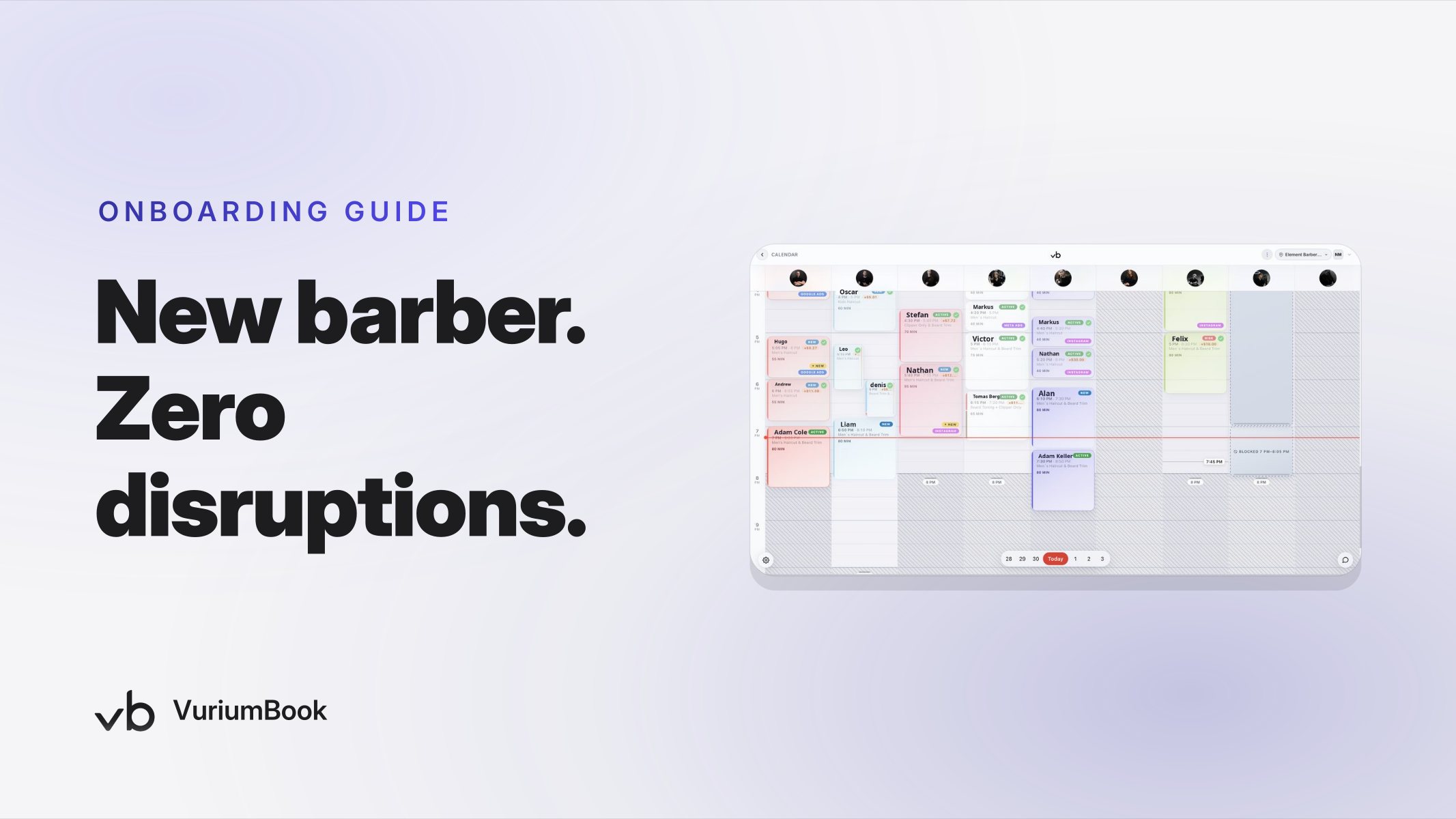
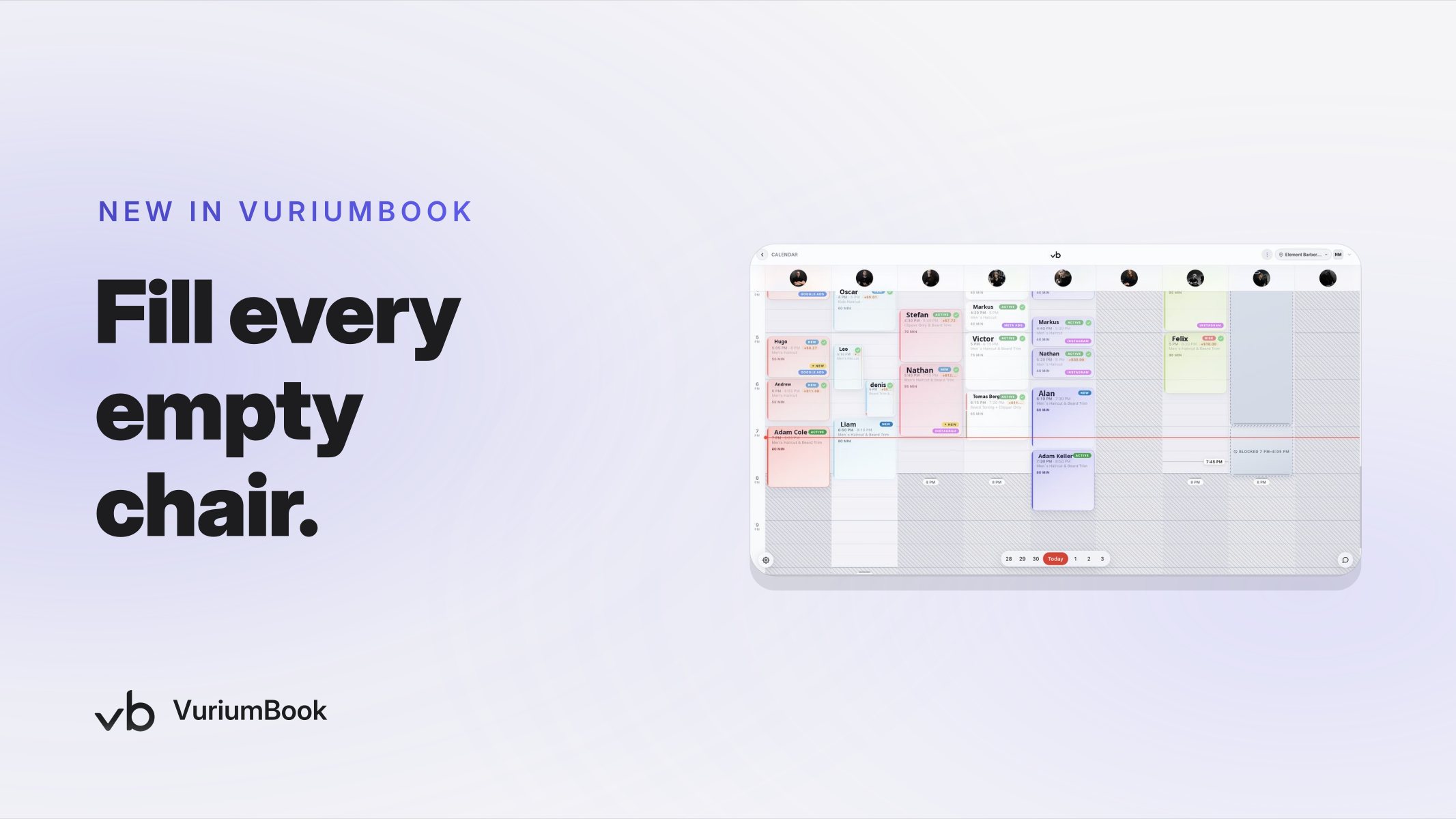
The calendar in 2.8 has been rebuilt around a single interaction: press and hold an appointment card, and it follows your finger. Drag it up or down to a new time slot, or slide it sideways to move it to a different specialist. Release it, and the card lands where you left it.
Nothing is saved the moment you release. A Move dialog appears first. It shows you exactly who the appointment is moving from, what time it is moving to, and who it now belongs to if you slid it to a different column. Before you confirm, you can toggle whether the client receives an SMS notification about the new time. Toggle it on if the change is significant enough that the client needs to know. Toggle it off for small internal adjustments where you would rather follow up yourself. Tap confirm, and only then is the move written to the schedule.
That confirmation step matters. It is easy to drop a card a slot off by accident. Having a moment to review the destination before anything is saved removes the anxiety of a misplaced drag. Barbershop calendar drag and drop scheduling has historically felt risky for exactly this reason, and the Move dialog closes that gap cleanly.
How to drag and drop an appointment
A practical example: Luna Beauty runs five specialists on a Saturday. A client calls to move her noon blowout to 2 p.m. with the same stylist. The front desk presses and holds the card, drags it down two slots, releases, reviews the Move dialog, switches on client notification, and confirms. Done in under ten seconds, and the client gets an automatic text with the new time.
\nFeature two: reschedule mode for moving multiple appointments at once
Moving one appointment is now simple. Moving several at once has traditionally meant repeating that process over and over, which is where mistakes happen. Version 2.8 introduces a dedicated reschedule mode to solve that.
When you enter reschedule mode, you can drag and reposition as many appointments as you need. Each card waits at its new location on the calendar while you continue rearranging others. None of the moves are applied yet. When you are satisfied with the new layout, tap Save once. A summary appears listing every change in the batch: each appointment, its old time, and its new time. Review the full list, then confirm. All moves are written to the schedule together in a single action.
This is the feature that matters most when something disrupts a full day. If a specialist calls in sick or a block of time needs to shift, you can redistribute appointments across the day and remaining staff, see the new arrangement visually before anything is official, and lock it all in with one confirmation. That is a meaningful improvement over the previous approach of moving appointments one at a time and hoping nothing was missed. Move multiple barbershop appointments at once and you cut both the time spent and the chance of leaving a client without a spot.
Reschedule mode best practices
Back at Luna Beauty: a stylist leaves early on a Friday afternoon and four clients still need to be seen. The front desk enters reschedule mode, drags each of the four appointments to open slots with available stylists, reviews the summary listing all four changes, and confirms. Every client's record updates at once. If notifications are toggled on during each move, SMS messages go out automatically so clients arrive at the right time and with the right person.
What else is in 2.8
Beyond the two headline features, version 2.8 includes bug fixes and stability improvements across the app. No new feature capabilities beyond what is described above ship in this release.
How to get started today
Update to version 2.8 from the App Store. The drag-and-drop calendar is active immediately on your existing schedule. Reschedule mode is accessible from the calendar view. No configuration is required to turn either feature on.
If you are new to VuriumBook or evaluating whether the platform fits your shop, the VuriumBook online booking and shop management page covers everything the platform does, from online booking and client records to payments, memberships, and payroll. You can also start a free trial and work directly in a live calendar to see how drag and drop feels with your own schedule.
For shops that have been thinking about broader scheduling strategy, our guide on filling every cancellation slot with a barbershop waitlist pairs well with these new calendar tools. When a rescheduled appointment opens a gap, a well-configured waitlist fills it automatically.
Version 2.8 is a focused release. It does not try to do everything at once. It makes the two most common calendar tasks, moving one appointment and moving many, faster, safer, and less error-prone than they have ever been in VuriumBook. Update the app, try a drag on your next busy morning, and see how it fits into your routine.